Notification rule
Notification rules allow you to customize the alerts and notifications you receive from your CrowdSec Console. By setting up specific rules, you can ensure that you are only notified about events that are relevant to your organization. This guide will walk you through the process of creating a notification rule for your linked integration.
Every organization can send notifications by email without linking anything. To send them to Discord, Slack or a webhook, link the integration first: see the Integrations Overview.
Create a notification rule
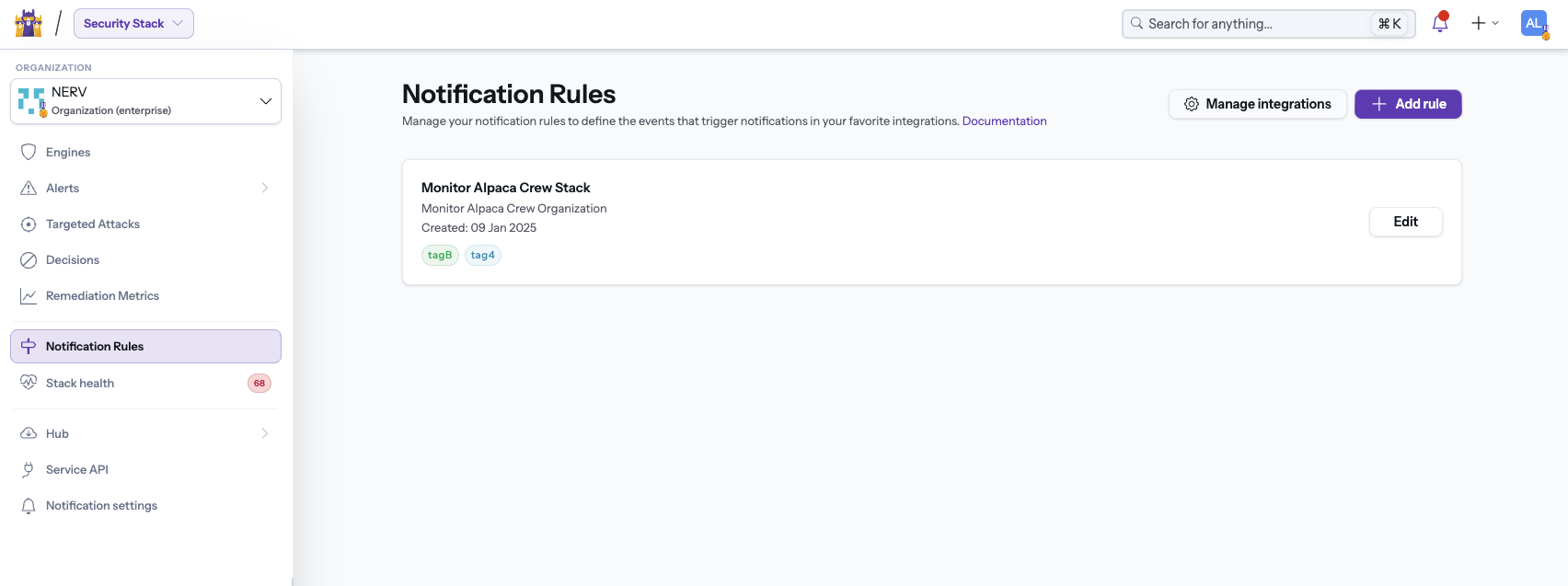
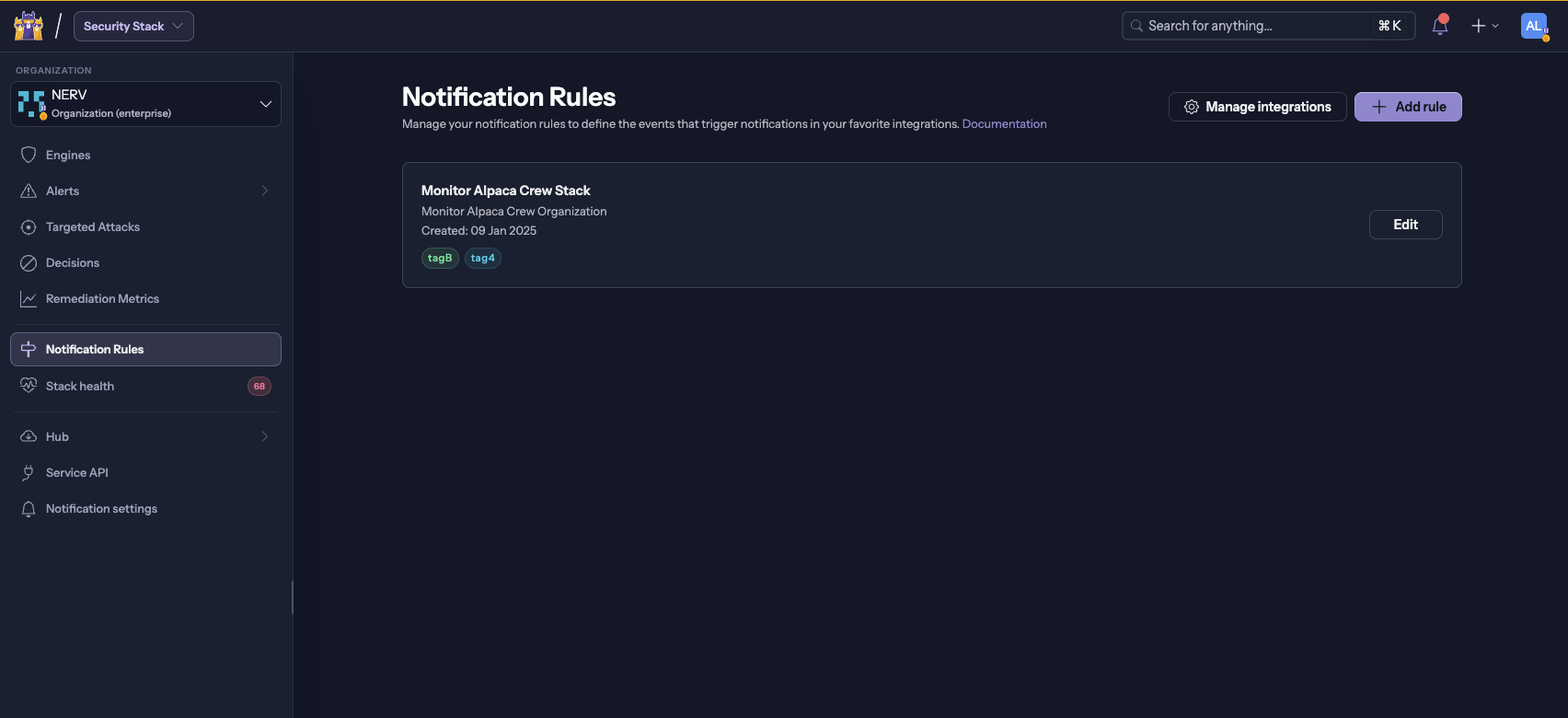
- In the CrowdSec Console, navigate to Notification Rules and click on Add Rule.
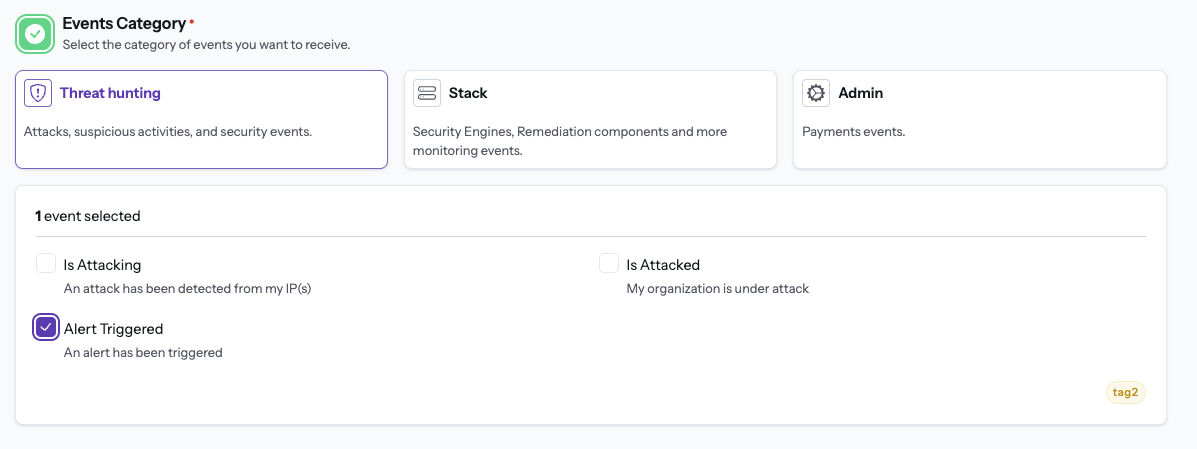
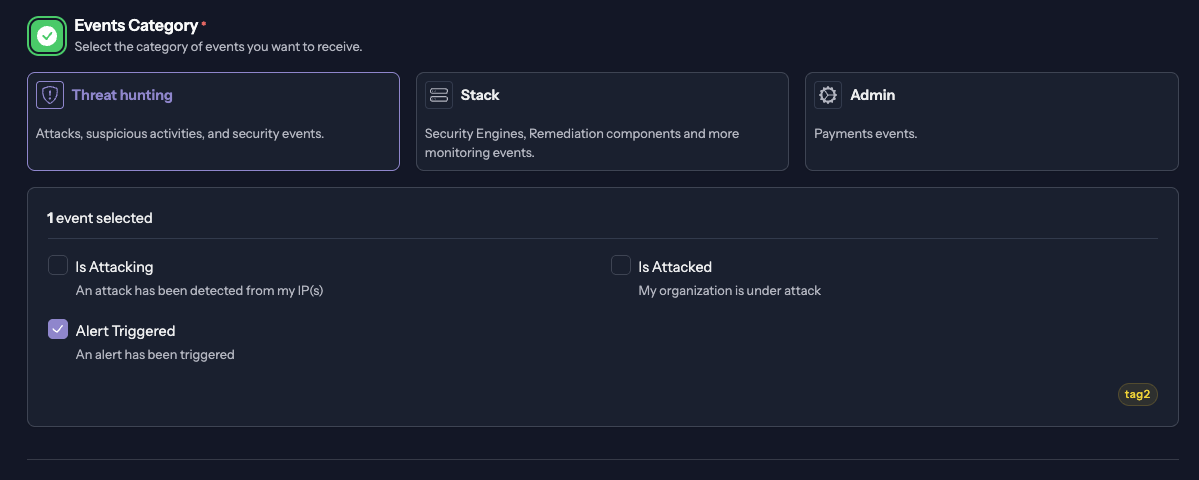
- Select the events you want to be notified about. You can only select one of the three categories at a time (Threat Hunting, Stack or Admin). Each of these categories contains a list of events that you can choose from. (The Threat Hunting category lets you select only one event, because its conditions differ from one event to another.)
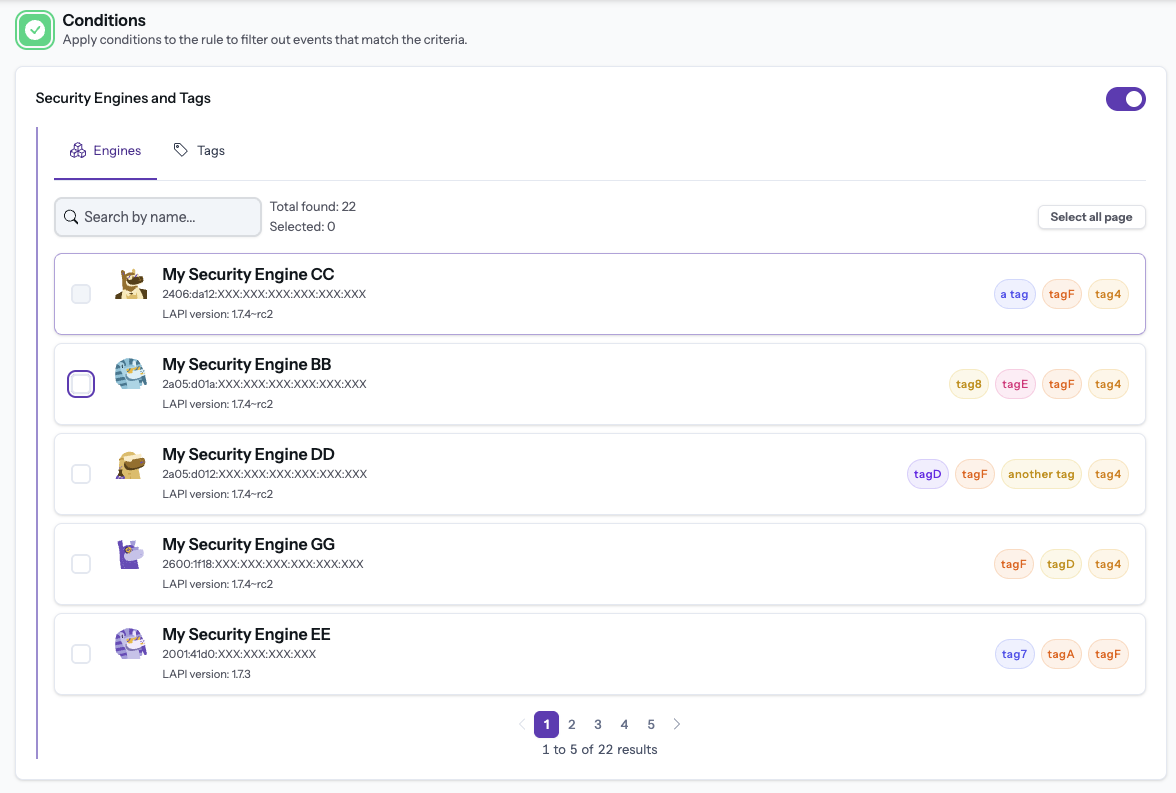
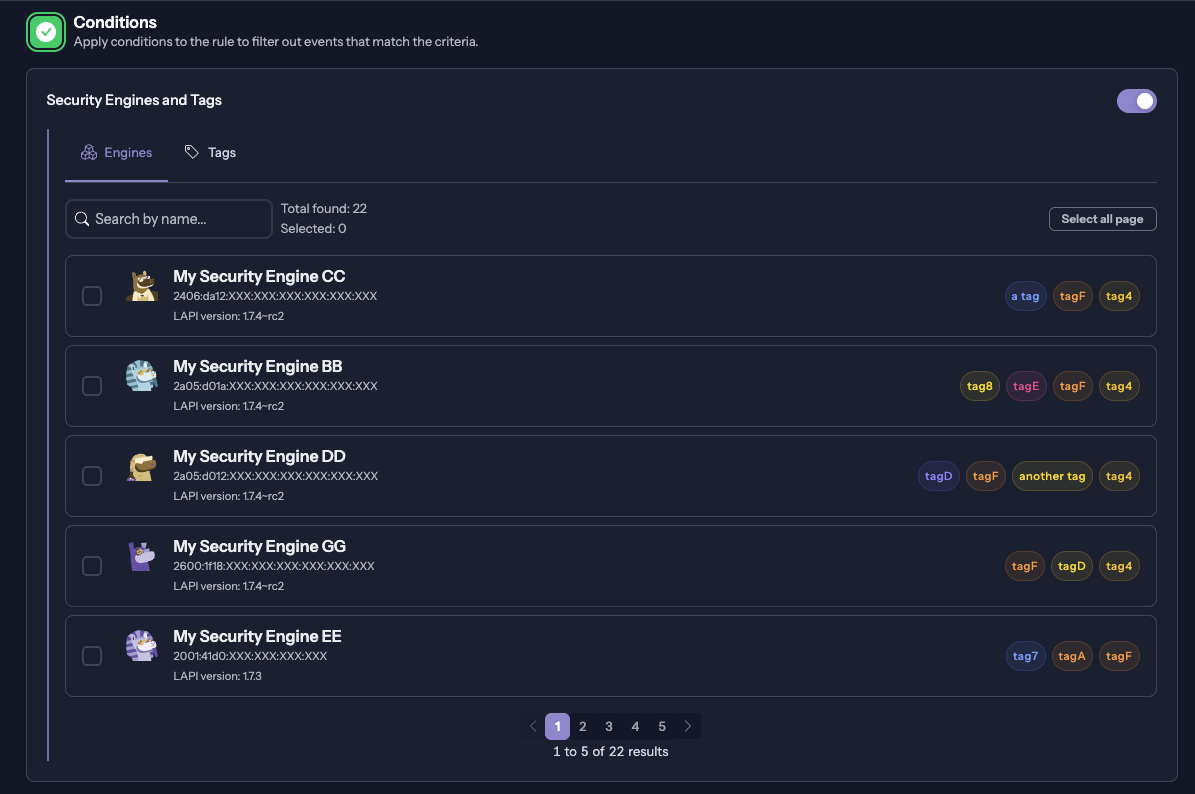
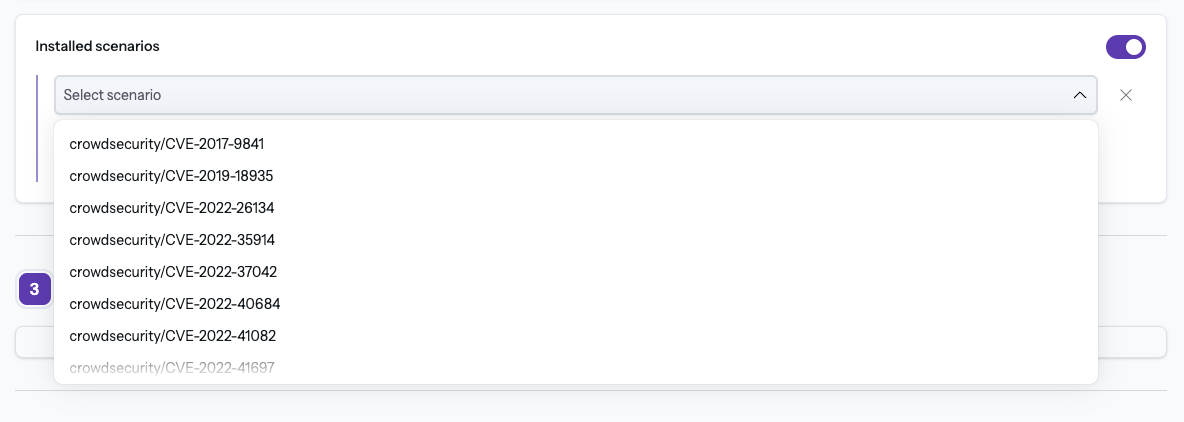
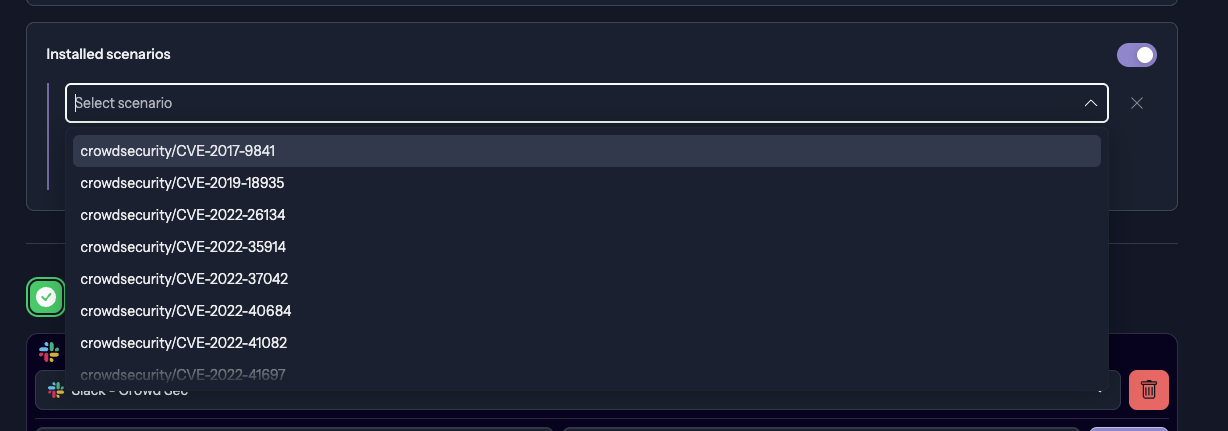
- (Optional) Select conditions. Stack category allows you to filter on Security Engine(s). Threat Hunting > Alert trigger event allows you to select specific scenarios.
Engine condition:
Installed scenarios:
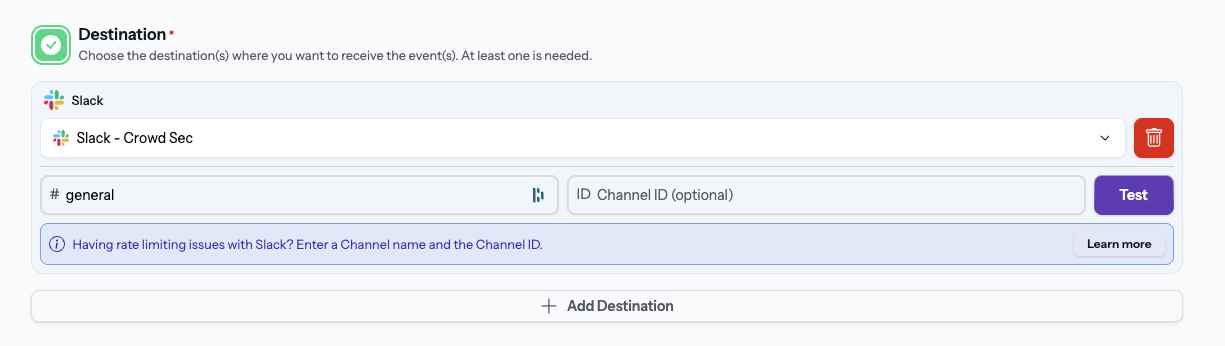
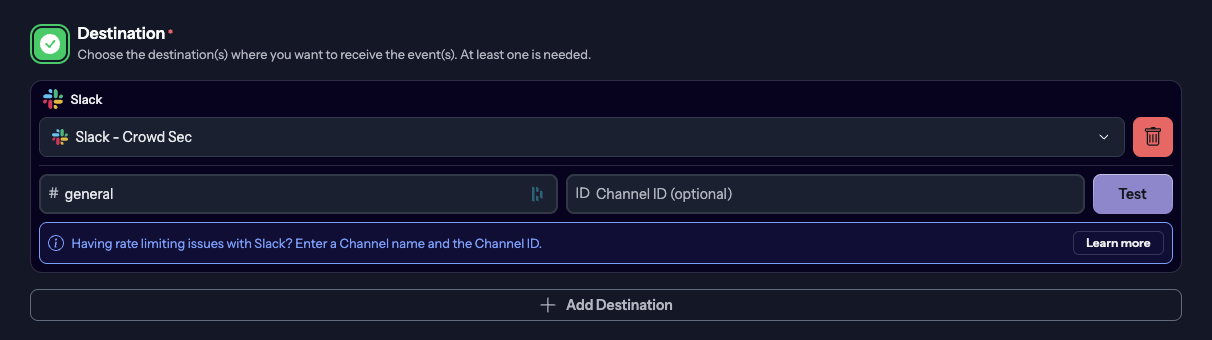
- Select destination, which is the integration you want to use for this rule. You can select multiple destinations for one rule. Destination input varies depending on the integration you selected. For example, the Slack integration lets you select a channel, the Webhook integration lets you select a URL, and the Email destination lets you select members of your organization. The first destination added to a rule is Email.
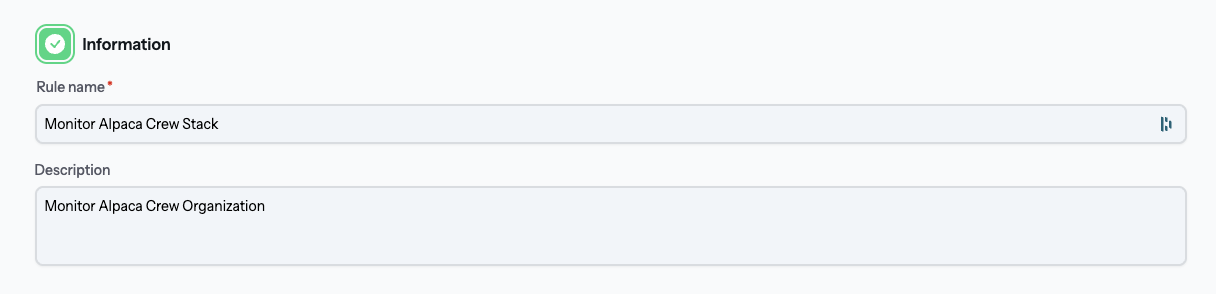
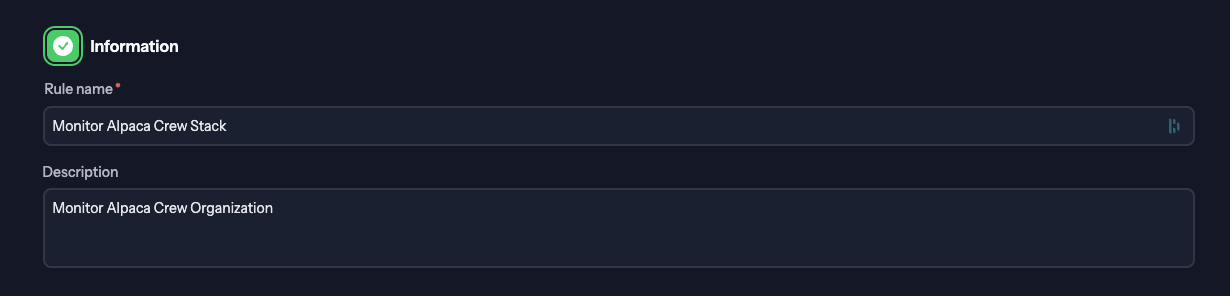
- Name and describe your rule.
-
Click on Create to save your rule.
-
Your rule will now appear in the list of notification rules for your integration. You can edit or delete it at any time.
Email destination
The Email destination is available in every organization, with nothing to link or configure. It sends the rule's notifications by email to the members you select.
Recipients
- Recipients are always members of your organization: you pick them from a list, and cannot type an address. To notify someone else, invite them to your organization first: the Invite a member link below the recipients opens your organization's members settings.
- An Email destination needs at least one recipient, and accepts up to 10, or fewer if your organization has fewer member seats.
Events not sent by email
Some events cannot be sent to an Email destination. In the event list, they carry a crossed-out envelope icon, and hovering it gives the reason:
- Already emailed by the Console: Am I Under Attack, the alert retention quota events, Payment Failed, Security Engine Enrolled and Security Engine Unenrolled. The Console already emails them to your members, and each member chooses whether to receive them in their own notification settings.
- Too frequent: Alert Triggered fires on every alert, which is too often for email. Send it to Discord, Slack or a webhook instead.
A rule cannot combine one of these events with an Email destination. If you select both, a warning explains why and the rule cannot be saved until you remove the event or the destination. In the Threat Hunting category, where a rule has a single event, Email is not offered as a destination for these events.